
Open your collection here.
Choose how to begin, from local files to a personal media library. This guide covers Android; labels may vary with the app language or version.
Start with local files
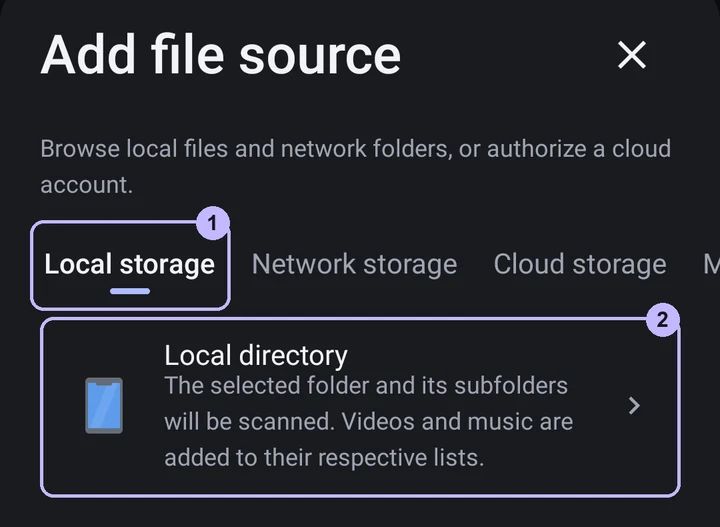
- Open Media sources in the bottom navigation, tap the add control, then choose Add file source.
- Choose a local file or folder and grant access using the system file picker.
- Wait for the selected media to import, then browse Videos or Music.
Adding a folder gives access to the authorized directory. Selecting one file does not grant access to its entire folder. Read the confirmation before removing a source.
Connect NAS and network storage
To browse raw NAS folders, use an enabled SMB or WebDAV service. If you already have a video library, go straight to Video servers.
Connect with SMB
- Enable SMB sharing on your NAS and give your account read access to the target folder.
- Make sure your phone can reach the NAS network. For initial troubleshooting, try the same local network.
- Go to Media sources → Add file source → Network storage → SMB. Enter the host, shared directory and required credentials, save, then browse.
Connect with WebDAV
- Confirm that the service supplies a WebDAV address, rather than a NAS administration page or a regular website.
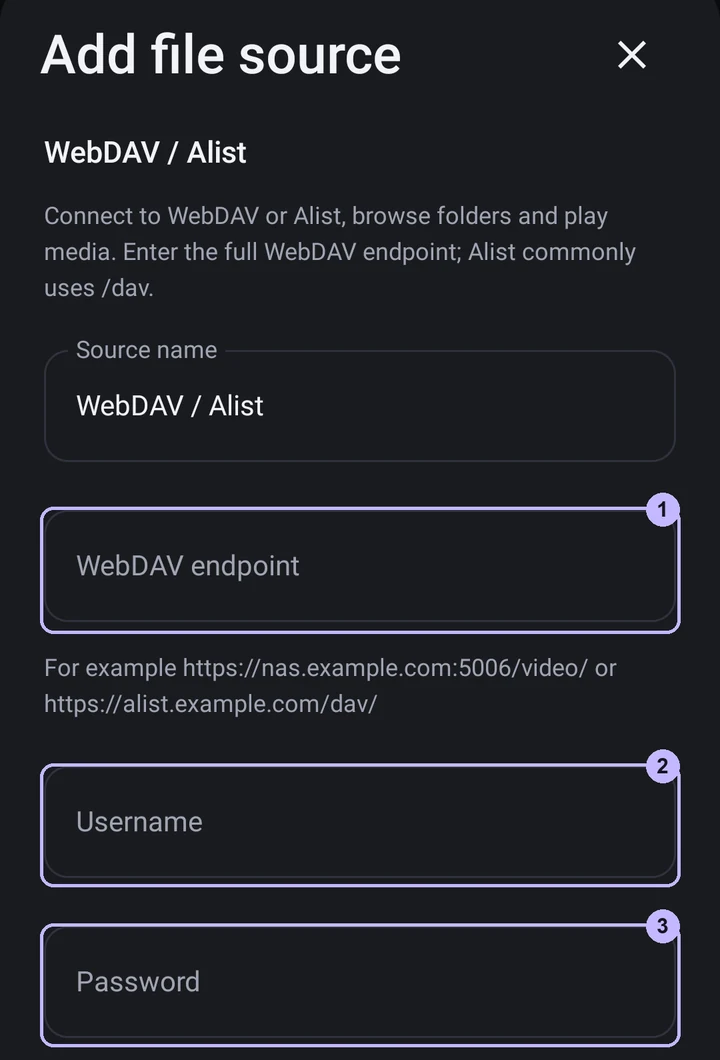
- Go to Media sources → Add file source → Network storage → WebDAV.
- Enter the actual protocol, host, port, path and account details. The HTTPS setting must match the service.
- After connecting, choose a directory to browse or import.
NAS administration, SMB, WebDAV and media servers can use different ports and permissions. Being able to sign into the admin page does not mean the other services are enabled.
Connect video servers
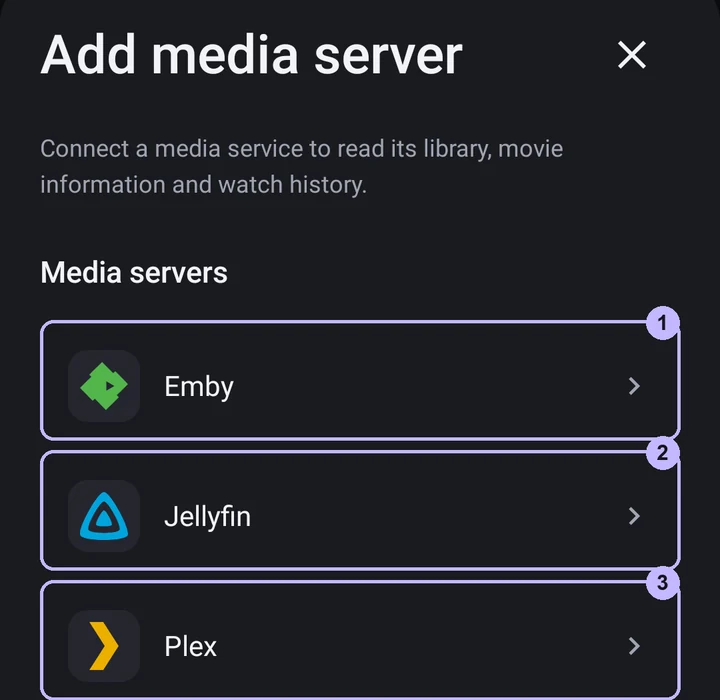
For users with an existing Emby, Jellyfin or Plex library. Veya connects to your service; it does not create a server or supply media.
Emby / Jellyfin
- Confirm that your phone can reach the service and your server account has library access.
- Go to Media sources → Add video server and choose the correct server type.
- Enter the server host or IP, with the port and path in their own fields. Match HTTPS to the server settings.
- Enter that server's username and password. Once connected, select the source in Videos.
Plex
Choose Plex and follow the app's instructions to sign in and authorize in your system browser. Return to Veya, wait for server discovery and choose your server. If you need a manual connection, use that option and follow its form instructions.
Posters, details and playable URLs depend on server configuration and account permissions. Compatible services must implement the relevant protocol; not every native NAS API can connect directly.
Connect music servers
- Go to Media sources → Add music server and choose Navidrome or Subsonic.
- Enter the service address, port, required path and server account. Check the HTTPS setting.
- Open Music, select that library in the source selector, then browse songs, albums and artists.
Add video and music servers separately for their respective purposes. Adding a music server does not remove local folders. You can switch back to a local source in Music.
Add and watch live TV
Veya supports video, music and live TV. Find Live at the top of Videos and add channels from sources you own or are authorized to use.
- Open Videos → Live and select Add live source.
- Give the source a name and choose Subscription, File, Paste text or Single stream. Channel lists support M3U / TXT. Single-stream playback depends on the protocol, codec and device.
- Enter the address or text, or choose a local file. For a programme guide, provide an XMLTV / XMLTV.gz URL or use the guide URL included in the playlist.
- Select Preview. Once parsed, the source is saved and the app returns to the live source list. Select Watch live to play. You can preview channels through the source actions menu.
- Open the channel panel during playback to browse groups and select a channel. Programme guide details come from your source.
Veya does not provide built-in channels, live content subscriptions or third-party access. Sources in screenshots are for demonstration. Add sources you are authorized to use. A guide must match the channels; programme details are not generated when no guide is supplied.
Playback, subtitles and audio tracks
Choose media and tap Play. Tap the video to show controls, then adjust position, speed and available audio tracks or subtitles. On a series detail page, choose the episode you want.
Audio tracks and subtitles depend on what the file or server provides. Subtitles are not generated automatically when none are available. Playback compatibility depends on the container, codec, device, network and server.
For external subtitles, use the import option in the player and choose a subtitle file you own. If timing is out of sync, adjust it in the available subtitle settings.
Accounts and Pro
Basic browsing and playback do not require a Veya account. Media server and cloud storage authorization uses the respective service's account, independently of Veya.
The free version supports up to 3 media server connections across video and music combined. Pro offers more connections and additional features. See the app and Google Play for entitlements, pricing, purchase and renewal terms.
Pro does not include media, NAS services or third-party accounts. On a new device, do not assume your sources and history have synced; you may need to select folders or authorize again.
For account data deletion, read the account deletion instructions.
Check these first
Cannot connect
- Can your phone's current network reach the service? Does it require the local network or configured remote access?
- Are the service type, host, port, path and HTTPS setting correct?
- Does the account have permission for the folder or library?
- Is the service running?
A file will not play
Try other files from the same source to distinguish a file problem from a connection issue. Keep the app's error message. A missing playable URL, insufficient permissions or unsupported device decoding can all prevent playback.
Contact and feedback
Email [email protected] with your device model, Android and Veya versions, source type, reproduction steps, expected result and actual message. For playback issues, include the container and codec if known.
Redact passwords, tokens, private server addresses and signed playback URLs. Do not send login credentials or complete private media files.