Video. Music. Live.
All in Veya.
Watch a show. Play an album. Tune into a live channel.
Bring local files, NAS and personal libraries together in one app.
Your files. Your library. Veya does not provide media content.
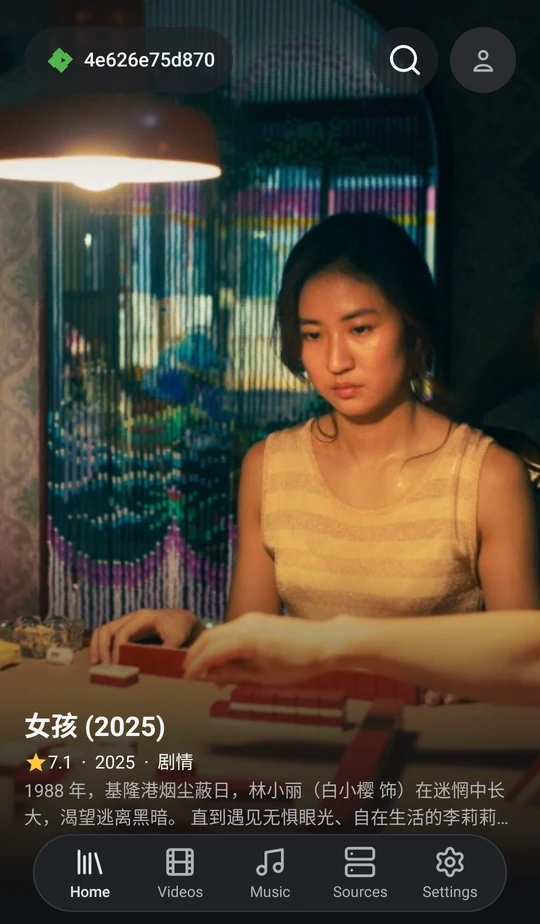
Video
Browse movies and shows by poster. Pick up where you left off.
Explore videoMusic
Songs, albums and artists. Take your collection with you.
Explore musicLive TV
Import your own channels and tune into what is happening now.
Explore live TV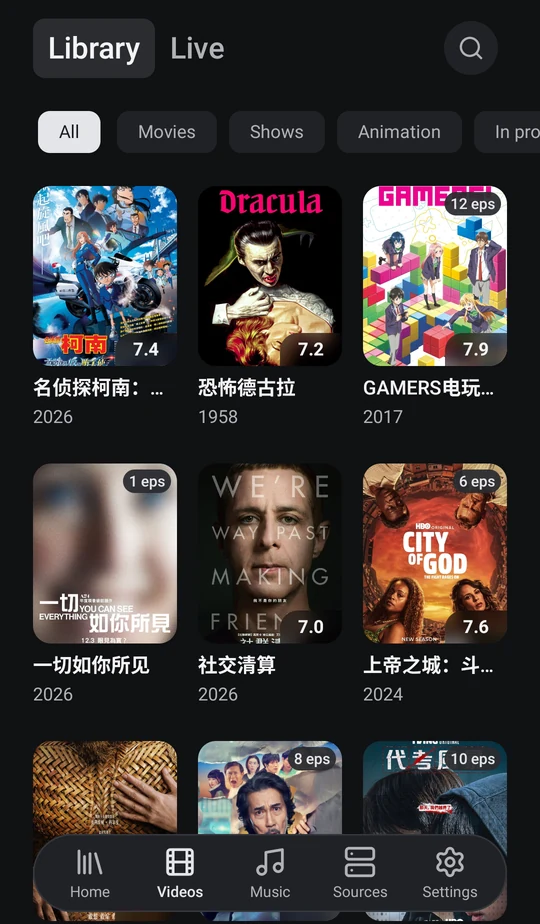
Make time
for a good story.
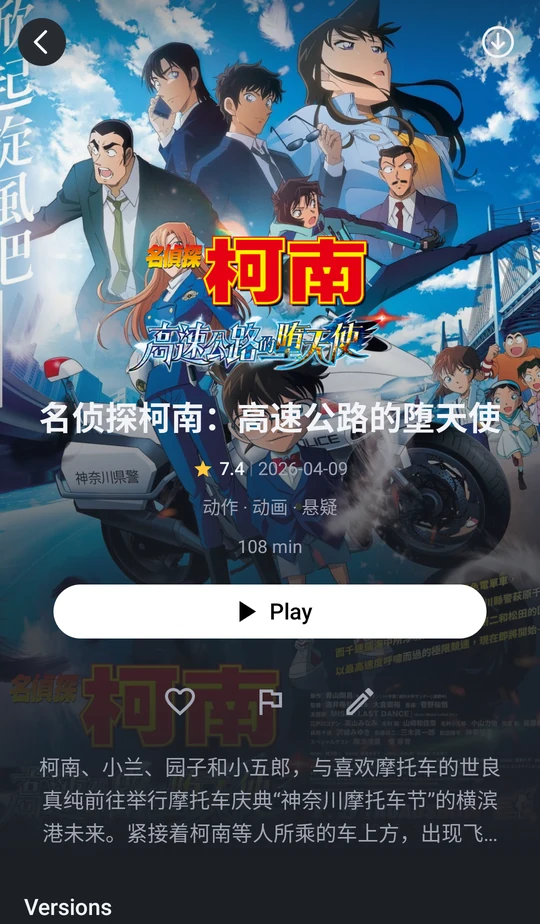
Browse movies and shows by cover. Read details from your server, or pick up where you left off.
- Movies and shows, clearly organized
- Resume from your saved position
- Switch available audio tracks and subtitles
Latest Android captures from Veya; media artwork and details come from connected sources and demonstrate features only.
A place for
your favorite songs.
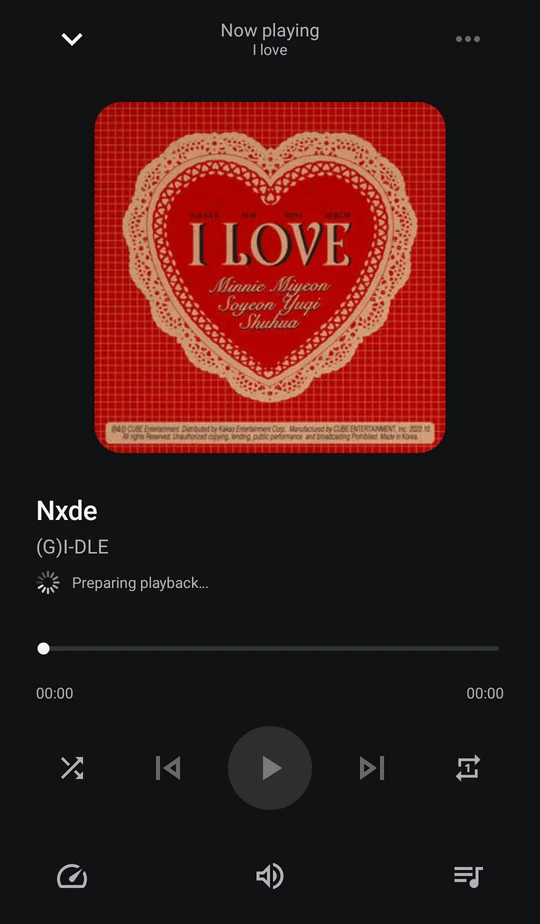
Music on your phone or a collection on your server. Browse albums and artists, and spend time with the songs you love.
- Browse songs, albums and artists
- Switch between local and server sources
- Keep the music going with playlists
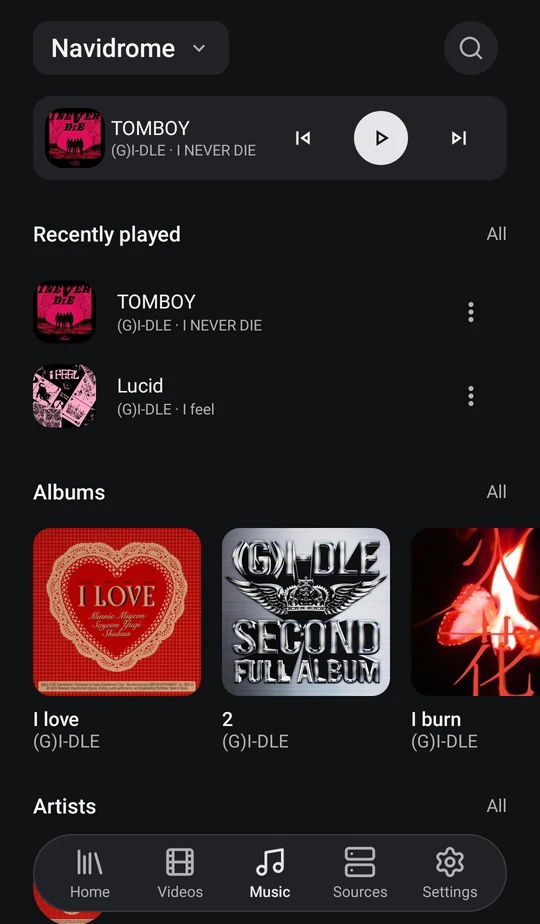
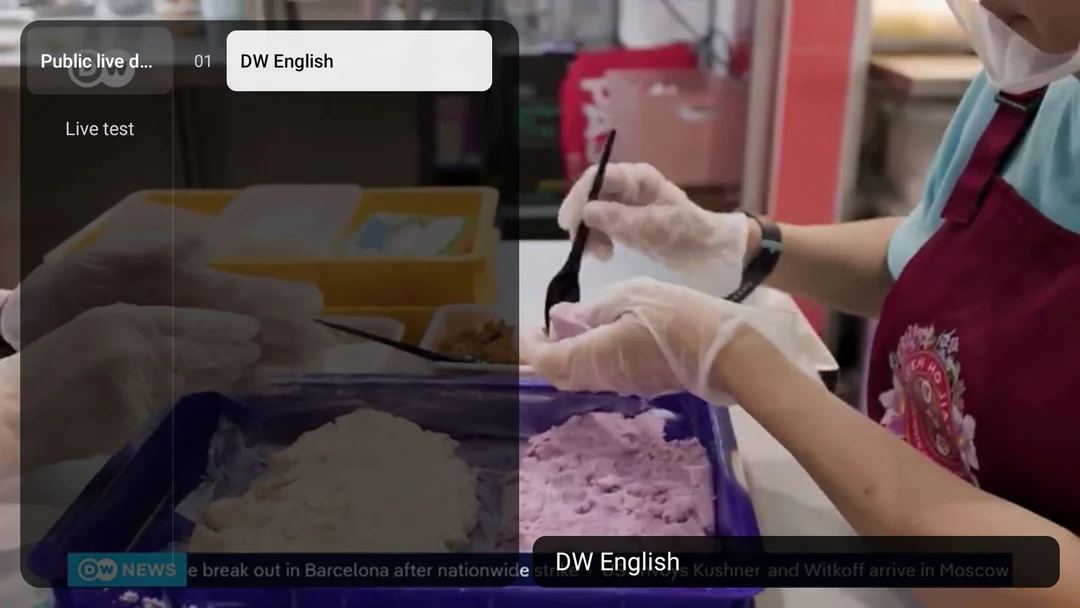
Actual Android live demo · Channels added by the user
Beyond your collection.
Tune into live TV.
From a film to a song to live TV, keep watching in Veya. Import your own channel list or stream address to get started.
- Import a subscription, file, pasted list or single stream
- Browse channel groups and switch during playback
- Add an XMLTV guide for programme details from your source
Veya does not include live channels. Guides, channel availability and playback depend on your sources and device.
Different places.
One collection.
There is no need to move all your files.
Open your media world from the sources you already have.
These are common sources. See Add source in the app for more options. Only use files and services you own or are authorized to access.
Small playback details. Thoughtfully handled.
Hear it. Understand it.
Switch available audio tracks and subtitles
to find your preferred way to watch.
Set your own pace
Adjust speed or seek through your video.
Replay the moments you love.
Pick up where you left off
Save your position and return to your library
to continue the story.
Playback depends on your device, codecs, network and source service. Available features are shown in the app.
Your collection, in three steps.
Start with a single folder
or connect your whole library.
- 1
Get Veya
Install Veya on your Android phone.
Download - 2
Add your own source
Choose local files or connect your storage and servers.
Read the connection guide - 3
Watch, listen or tune in
Open Video, Music or Live TV and make time for your media.
Learn about playback

Your collection is ready.
Open Veya.
Make room for your media
on your Android phone.
Android 7.0 or later · Google Play access required
Store availability and device compatibility are determined by Google Play.

Start exploring.
Choose more later.
Basic browsing and playback do not require a Veya account.
The free version supports up to 3 media server connections across video and music servers combined. Optional Pro features offer more connections and additional functionality.
See the app and Google Play for Pro features, prices and purchase options. Pro does not include third-party media or server services.
Accounts and ProA few things you might wonder.
Full help guideDoes Veya provide films, music or live channels?
No. Veya manages and plays your personal media. Add files, network storage or media servers you own or are authorized to use. Veya does not provide third-party server accounts or content subscriptions.
Can I watch videos, listen to music and watch live TV in one app?
Yes. Veya supports video, music and live TV. Browse movies and shows in Videos, songs, albums and artists in Music, and add your own channels through Live at the top of Videos.Read the live TV guide.
Can I use Veya without a NAS?
Yes. Start with files on your phone. Add a file source under Media sources, choose a local file or folder, grant access, then browse it in Videos or Music. Read the local playback guide.
Should I connect my NAS using SMB, WebDAV or a media server?
If your NAS runs a supported service such as Emby or Jellyfin, connect that service to browse its library and details. For raw folders, use an enabled SMB or WebDAV service. NAS administration credentials may differ from those services. Read the network storage guide.
Which video and music servers are supported?
Common video servers include Emby, Jellyfin and Plex; music servers include Navidrome and Subsonic. See Add source in your installed version for other options, requirements and features. View connection steps.
Do I need an account? What are the free limits?
Basic browsing and playback do not require a Veya account. Private servers still require an authorized server account. The free version supports up to 3 media server connections across video and music combined. Pro is optional; see the app and Google Play for features and prices.
Where can I download Veya? Is there an iPhone or TV version?
This website provides Google Play for Android and Android TV, plus the App Store for iPhone. See the download page for the TV installation link.
What if a connection or a file fails to play?
Check that your phone can reach the source, and verify the service type, address, HTTPS, port and permissions. Playback also depends on codecs, devices and service limits. Note the error and steps to reproduce, then see the troubleshooting guide. Do not share passwords, tokens or private playback links.
Is my Veya account the same as my server account?
No. A Veya account is for the app's own account services and entitlements. Emby, NAS and music server accounts are managed by their respective services. Pro does not grant access to third-party servers or media.